
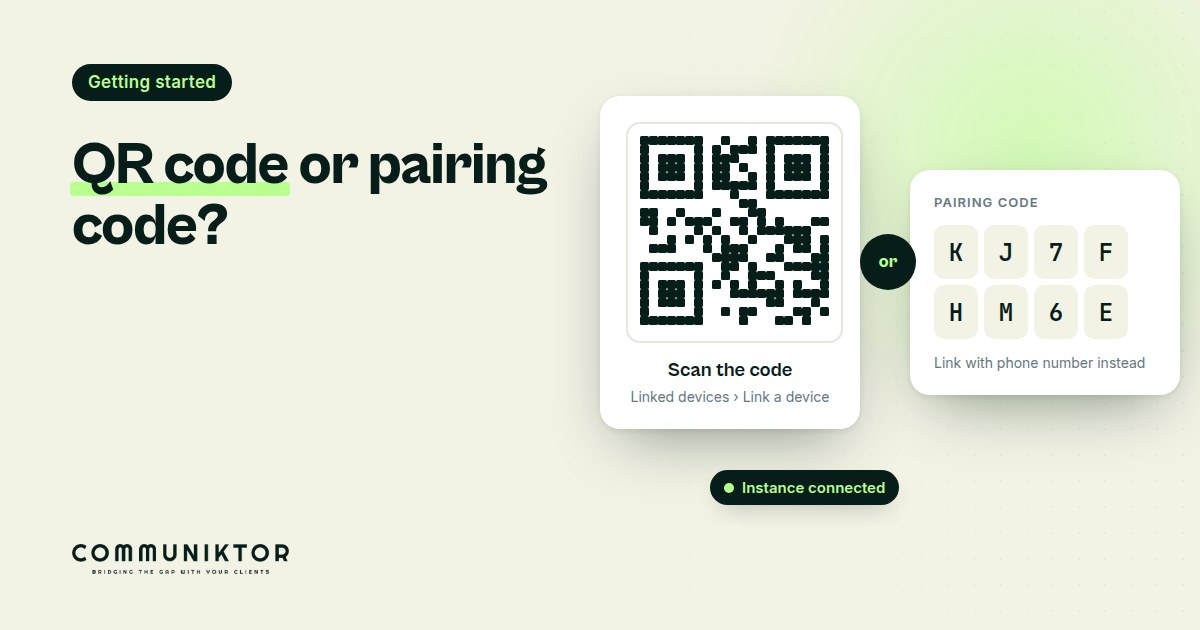
Before Communiktor can send anything, your WhatsApp number has to be linked to an instance. There are two ways to do it, a QR code and a pairing code, and they end in exactly the same place. The difference is practical: where you are, and which screens you have in front of you.
What linking actually does
Communiktor joins your WhatsApp account as a linked device, like WhatsApp Web or WhatsApp on a computer. Nothing changes on your phone: your chats stay there, you keep using the app normally, and you can see Communiktor in the list of linked devices at any time.
This also means you are not moving to a new number or a new account. Your customers keep writing to the number they already have saved.
Option 1: scan a QR code
This is the quickest way when you are sitting at a computer with your phone at hand.
- In the dashboard, open your instance and choose to link with a QR code.
- On your phone, open WhatsApp. On Android, tap the three dots at the top right, then Linked devices. On iPhone, go to Settings, then Linked devices.
- Tap Link a device and point the camera at the code on your screen.
The code refreshes about every 20 seconds, so if it expires while you are looking for the menu, just scan the new one. The instance shows as connected a moment later.
Option 2: type a pairing code
The pairing code exists for the times when scanning is awkward or impossible:
- the phone is the only screen you have, so you cannot scan it with itself;
- you are setting up the number of a client or a colleague who is not next to you;
- the phone camera is broken or the QR code will not focus.
Here is how it works:
- In the dashboard, open your instance, choose the pairing code and enter the phone number in international format, digits only (for example
237670000000). - Communiktor shows an 8-character code, something like
KJ7FHM6E. - On the phone, go to Linked devices, tap Link a device, then Link with phone number instead, and type the code.
If you are helping someone remotely, you can send them the code by SMS or read it to them on a call. The same code stays valid for about two minutes. If WhatsApp refuses it, ask for a new one.
Linking from your own app
If you manage numbers for your own customers, you can run the whole process from your code instead of the dashboard:
GET /instances/qrreturns the QR code to display in your own interface.POST /instances/code, with the phone number, returns a pairing code.
curl -X POST https://api.communiktor.com/instances/code \
  -H "Content-Type: application/json" \
  -H "X-API-KEY: YOUR_API_KEY" \
  -d '{ "instance": "YOUR_INSTANCE_ID", "phone": "237670000000" }'
Webhooks keep your app informed along the way: instance.qr.generated each time a new QR code is ready, instance.pair.code.generated when a pairing code is available, and instance.connected once the number is linked.
After linking
A few things worth knowing once your instance is connected:
- Your phone can be offline. Messages keep going out when the phone is locked or has no signal for a while. Just open WhatsApp on it from time to time: WhatsApp logs out linked devices when the main phone has not been used for about 14 days.
- Unlinking is in your hands. If someone removes Communiktor from the phone's list of linked devices, the instance disconnects and your app receives an
instance.disconnectedwebhook. Linking again takes a minute. - One number per instance. If you have a sales number and a support number, create two instances. The same API key works for both.
Which one should you choose?
At your desk, with your phone in your hand, scan the QR code: it takes ten seconds. For everything else, remote setups, a single phone, a client on the other side of the city, use the pairing code. Either way, you can be sending your first message a minute later.